顯示具有 SharePoint 標籤的文章。 顯示所有文章

2012年2月25日 星期六

Sharepoint - Allow use "Open with Windows Explorer" download large file than 50mb

當你使用「以Windows檔案總管開啟」(Open with Windows Explorer)方法來下載SharePoint 2007 or 2010上面的檔案時,若有單一檔案超過50MB的話,就會出現下載失敗的訊息,失敗訊息請詳圖片。
WIN 7會出現:【錯誤0x800700DF:檔案大小超過允許的限制,無法儲存。】or【Error 0x800700DF:The file size exceeds the limit allowed and cannot be saved.】
WIN XP會出現:【無法複製:無法讀取來源檔案或磁碟。】or【Cannot Copy:Cannot read from the source file or disk.】
若想要下載超過50MB的檔案,就必須更改registry的預設值。

Solution:
1.Open regedit
2.Move to HKEY_LOCAL_MACHINE\SYSTEM\CurrentControlSet\Services\WebClient\Parameters
3.Double Click FileSizeLimitInBytes on the right panel and click Modify
4.Click on Decimal
5.Enter a new value 4294967295 (bytes) and click OK
6.Close regedit and restart the computer
7.The last,you can download reach 4GB file (4294967295 bytes = 3.9999GB)

2011年7月15日 星期五

SharePoint 2010 - 問卷使用方法

很多人不知道如何使用SharePoint來建立問卷,其實SharePoint問卷功能很強,可以建立可重複投票的問卷、可以建立記名或不記名的問卷、可以建立有驗證機制的問卷、可以管控哪些人可填寫問卷、可以建立能看到別人問卷答案的問卷等。


1.首先建立一份問卷,給問卷一個名稱。

2.建立問題和選項內容。


3.建立完問卷會自動跳到『問卷設定值』頁面,這個頁面內有許多的設定可以修改,這邊分享其中三個頁面的功能。

在『一般設定』頁面,可修改問卷名稱、記名還是不記名的問卷、允許多次填寫。

在『進階設定』頁面,可修改只能看自己填寫的問卷或可讀取所有人填寫的問卷。

在『此問卷的權限』頁面,可邀請要參與此問卷的人,若只給予特定使用者填寫,可以停止繼承權限,自己再加入受訪人。

2011年7月14日 星期四

SharePoint 2010 修改上傳檔案大小上限

SharePoint 2010 預設最大上傳大小50MB,上傳超過50MB檔案就會出現錯誤訊息,這篇教你如何變更單一檔案上限。

1.開啟【SharePoint 2010管理中心】頁面,按下【管理Web應用程式】。

2.點選要修改上傳大小限制的網站,按下【Web應用程式】,點選【一般設定】。

3.會出現【Web應用程式一般設定】的頁面,找到【最大上傳大小】,輸人單一檔案上限(最大值為 2047 MB),最後按下【確定】完成設定。

2011年4月29日 星期五

升級MOSS 2007 至 MOSS 2010

情境設定:
目前有SharePoint 2007與32位元SQL Server
有一網站http://ServerName:1111,對應內容資料庫WSS_Content_1111
現在要把SharePoint 2007遷移至SharePoint 2010、32位元的SQL Server遷移至64位元的SQL Server

1.先備份32位元的SQL Server的內容資料庫(WSS_Content_1111),並還原到64位元的SQL Server(這個動作很簡單,大家自己來)

2.到SharePoint Server 2010管理中心→應用程式管理→管理 Web 應用程式,新增一個Web應用程式
建立新的網站名稱:http://ServerName:1111,資料庫:WSS_Content_Temp

3.開啟SharePoint Server 2010 管理命令介面,輸入內容資料庫相容性測試指令,並檢查相容性問題
Test-SPContentDatabase -Name WSS_Content_1111 -WebApplication http://ServerName:1111

4.在SharePoint Server 2010 管理命令介面,輸入掛載內容資料指令
Mount-SPContentDatabase -Name WSS_Content_1111 -DatabaseServer ynlindb -WebApplication http://ServerName:1111

5.可在SharePoint Server 2010管理中心→升級與移轉→檢查升級狀態

6.到SharePoint Server 2010管理中心→應用程式管理→管理內容資料庫→移除WSS_Content_Temp內容資料庫

7.最後到http://servername:1111/內確定資料及人員權限是否正常

2011年4月20日 星期三

SharePoint 2010 - 切割子網站為獨立的資料庫

情境設定:

SharePoint  Server 2010 + SQL Server 2008

有一集合網站 http://ServerName:1234 與子網站 http://ServerName:1234/testsite 共用同一資料庫  WSS_Content_1234 ,因資料庫膨脹迅速,造成備份效能降低。

如今想把 子網站 http://ServerName:1234/testsite 的資料庫從  WSS_Content_1234 內切割成獨立的資料庫 WSS_Content_1234_testsite
使 http://ServerName:1234 對應資料庫 WSS_Content_1234
使 http://ServerName:1234/testsite 對應資料庫 WSS_Content_1234_testsite


1.開啟SharePoint 2010 管理命令介面


2.使用下列指令將子網站 http://ServerName:1234/testsite 的資料匯出產生.CMP檔案(請確認匯出的路徑空間是否足夠),紅色字請依實際狀況更改。
stsadm -o export -url http://ServerName:1234/testsite -filename d:\testsite.cmp -includeusersecurity -versions 4


 3.刪除子網站 http://ServerName:1234/testsite ,到 testsite 的「首頁」→「網站動作」→「網站設定」→「刪除這個網站」。


4.使用下列指令新增一個網站 http://ServerName:1234/testsite 及建立新的資料庫,紅色字請依實際狀況更改。
stsadm -o createsiteinnewdb -url http://ServerName:1234/testside -owneremail ynlin@ynlin.com -ownerlogin ynlin\administrator -title 'TestSite' -databaseserver SharePointDBname -databasename WSS_Content_1234_testsite


5.使用指令將備份的資料匯入到新增的網站及資料庫,紅色字請依實際狀況更改。
stsadm -o import -url http://ServerName:1234/testsite -filename d:\testsite.cmp -includeusersecurity


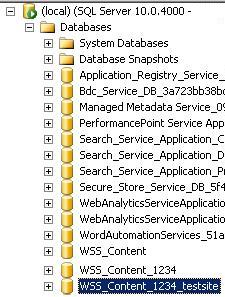
6.附上最後資料庫從原本的WSS_Content_1234切割出WSS_Content_1234_testsite的圖

2011年4月17日 星期日

SharePoint 2010 多國語系安裝及啟用方法

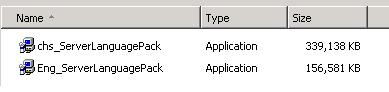
1.先到微軟下載中心,下載你要的 SharePoint 2010 語言包,附上下載路徑
http://www.microsoft.com/downloads/details.aspx?FamilyID=046f16a9-4bce-4149-8679-223755560d54&displayLang=zh-tw

2.這邊以英文語言包圍範例,在SharePoint Server 2010上執行剛下載的語言包。

 3.接下來不是按下一步,就是按完成。

4.安裝完成後,進入管理中心,「網站動作」→「網站設定」。

5.點選「語言設定」。

6.勾選剛安裝的語言→確定。

7.在右上角可選取「選取顯示語言」→「English」。

 8.變成英文語系的畫面。